

Adding new Gift Card Products - Govalo Support Center
Adding new Gift Card Products
Govalo allows you to have multiple gift card products for different occasions! To create additional gift card products:
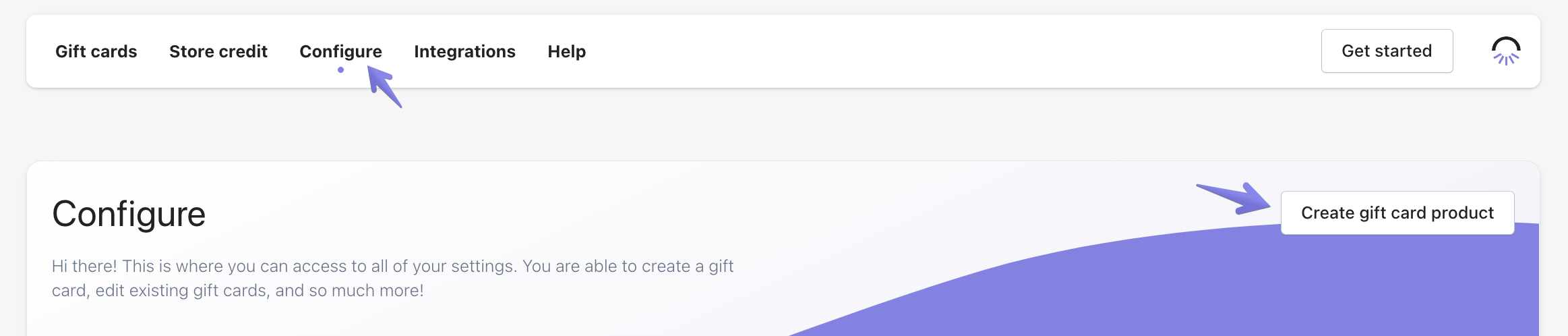
In the Govalo app, go to Configure and click Create gift card product:
Enter your desired product description name and product description. Upload a gift card image or feel free to use one of our templates!
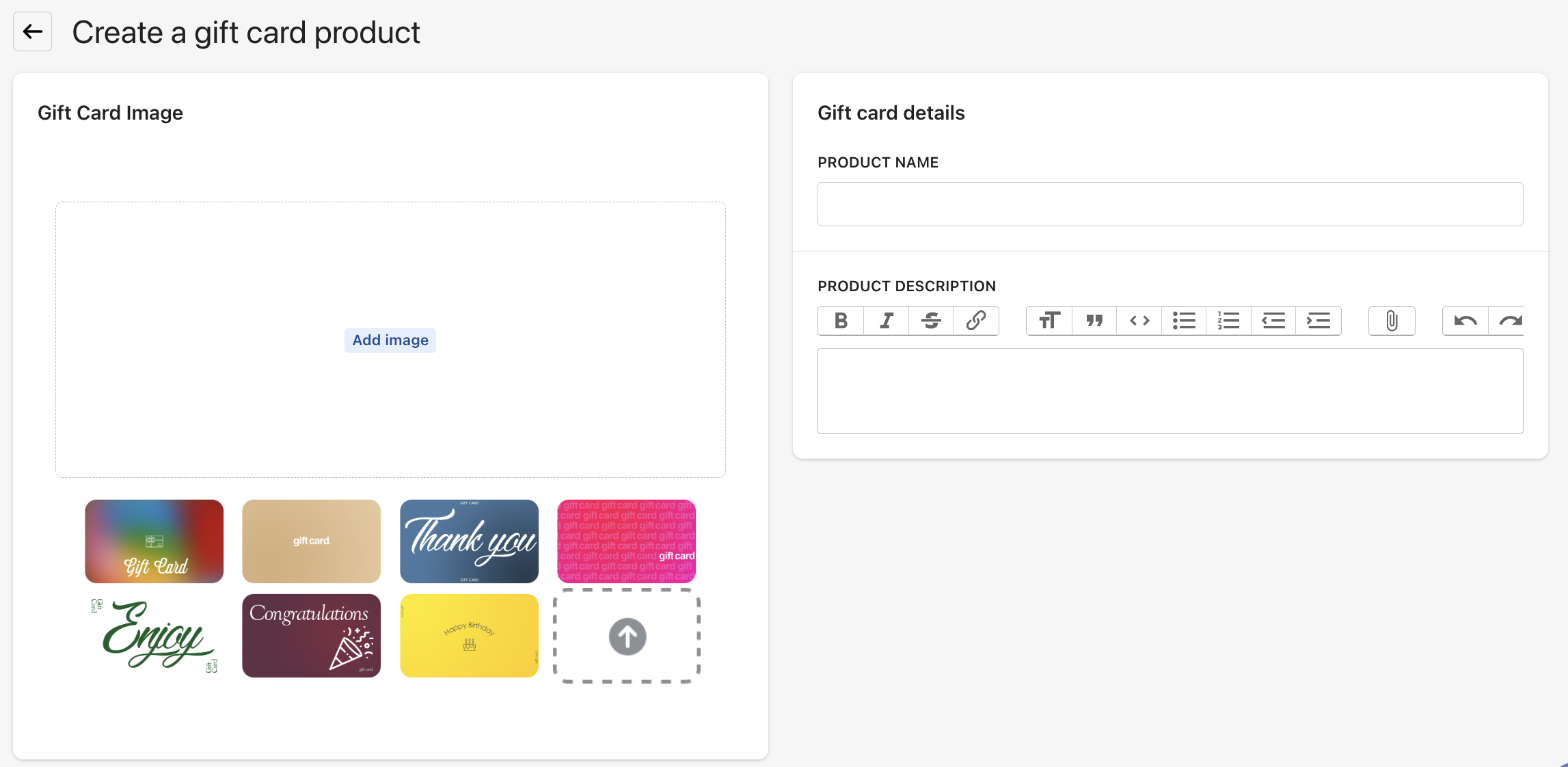
Click Save when you're ready to create the new gift card.
The gift card will be created in Draft mode by default. Click Activate when you are ready to activate it:
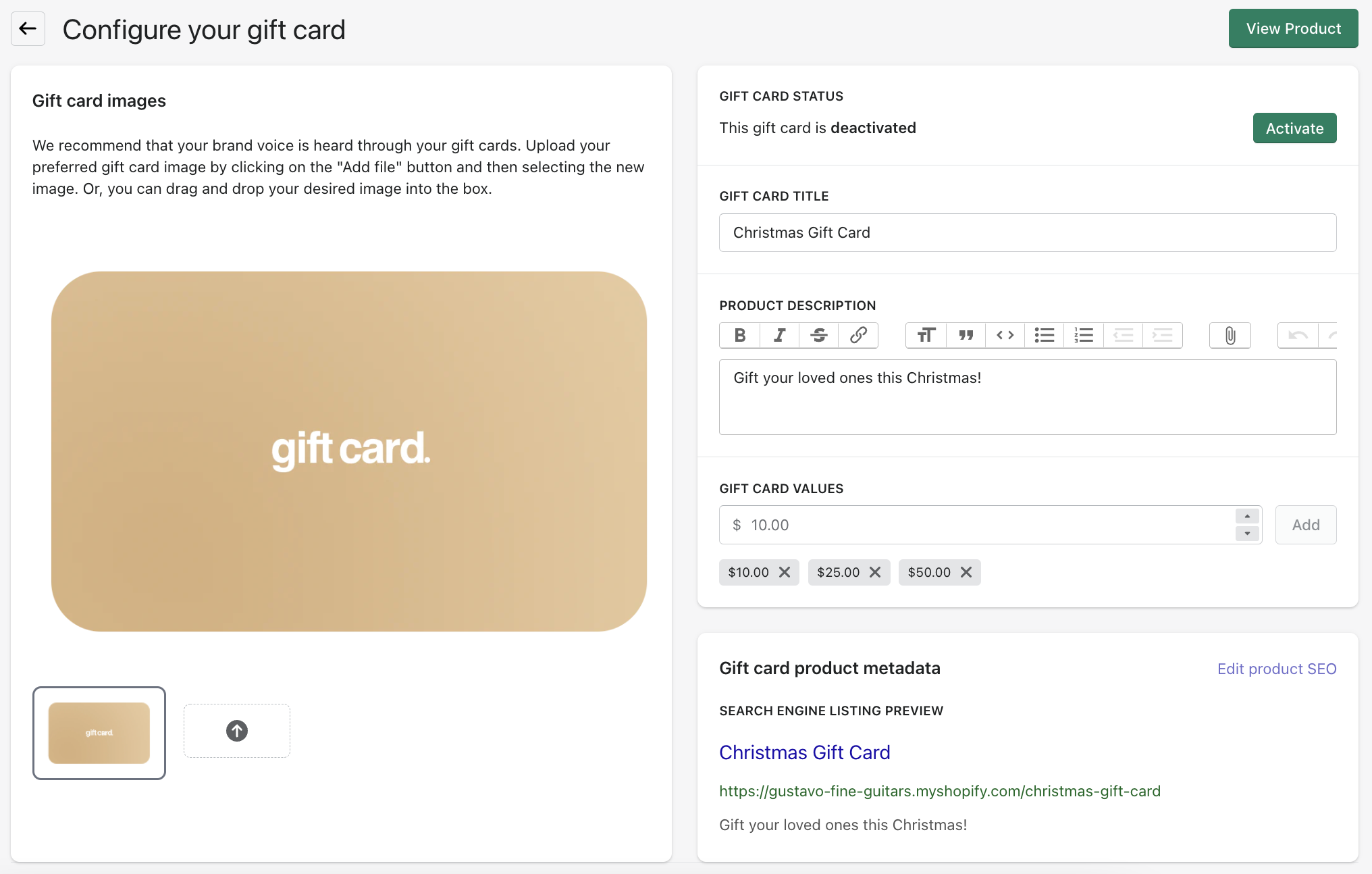
Once the card is created, you can also update other details such as the values offered, as well as the product SEO. Make sure to click Save in case you make additional changes.
Related Articles